
How to save battery on iPhone: 10 tips to make your battery last longer
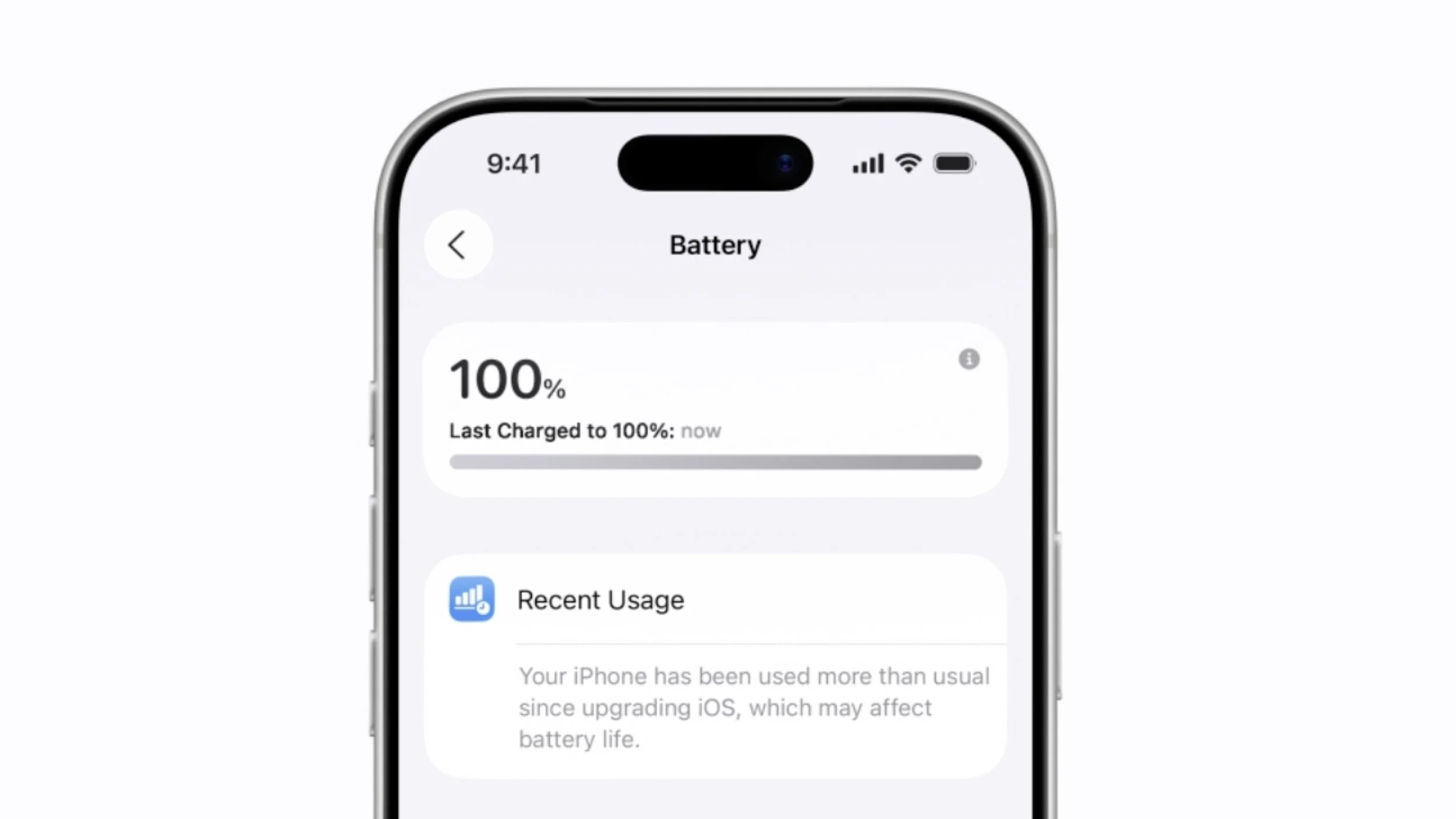
If your iPhone battery seems to drain quickly, you’re not alone. Many people notice their phone running out of power before the end of the day — especially if they use it for photos, messages, browsing the internet, or video calls.
The good news is that a few simple adjustments can significantly improve your iPhone’s battery life.
Here are ten easy ways to help your iPhone battery last longer.
1. Turn On Low Power Mode
Low Power Mode reduces background activity and helps your battery last longer when it’s running low.
How to turn it on:
Open Settings
Tap Battery
Turn on Low Power Mode
You’ll know it’s active when the battery icon turns yellow.
2. Lower Your Screen Brightness
Your screen uses more battery than almost anything else on your phone.
Reducing brightness can make a big difference.
How to adjust it:
Open Settings
Tap Display & Brightness
Move the brightness slider lower
You can still increase it temporarily when needed.
3. Turn On Auto-Lock
Auto-Lock turns your screen off automatically when you’re not using it.
How to change it:
Open Settings
Tap Display & Brightness
Tap Auto-Lock
Choose 30 seconds or 1 minute
This prevents your screen from staying on unnecessarily.
4. Turn Off Background App Refresh
Some apps continue updating in the background, which can drain battery power.
To turn it off:
Open Settings
Tap General
Tap Background App Refresh
Turn it off or limit it to certain apps
5. Reduce Location Services
Apps like maps and weather use your location, which can drain battery if always active.
How to adjust it:
Open Settings
Tap Privacy & Security
Tap Location Services
You can set many apps to “While Using the App” instead of “Always.”
6. Close Apps You’re Not Using
Apps running in the background may continue using power.
To close them:
Swipe up from the bottom of the screen
Pause in the middle
Swipe apps upward to close them
7. Turn Off Unused Wireless Features
Features like Bluetooth and AirDrop use battery when left on.
If you’re not using them, turn them off temporarily.
You can do this from Settings or the Control Center.
8. Keep Your iPhone Updated
Software updates often include improvements that make your phone more efficient.
To check for updates:
Open Settings
Tap General
Tap Software Update
Install updates when available.
9. Check Which Apps Use the Most Battery
Some apps consume much more battery than others.
To see this:
Open Settings
Tap Battery
You’ll see a list of apps and how much battery they use.
If an app uses a lot of power, you may want to limit how often you use it.
10. Avoid Extreme Temperatures
Very hot or very cold temperatures can affect battery performance.
Try to keep your phone:
• Out of direct sunlight
• Away from heaters
• Inside when it’s extremely cold
This helps protect long-term battery health.
Final Thoughts
Your iPhone battery should comfortably last most of the day with normal use. By adjusting a few simple settings, you can extend battery life and reduce the need for constant charging.
If your phone still drains quickly, it may be worth reviewing settings together or checking if the battery itself needs replacing.