
How to print from your iPhone
Want to print a photo, email, document, or webpage from your iPhone or iPad? You can do it wirelessly without connecting your phone to a printer with a cable.
This guide will walk you through the process, one step at a time.
Before you begin
Before printing, make sure you have the following:
An iPhone or iPad: Make sure it is turned on and ready to use.
A wireless printer: Your printer needs to support Apple’s AirPrint feature. Most modern wireless printers do.
A Wi-Fi connection: Your iPhone and printer must be connected to the same Wi-Fi network.
Paper: Check that your printer has paper loaded.
Ink or toner: Make sure your printer has enough ink or toner to print.
A helpful tip: If you’re unsure whether your printer supports AirPrint, check your printer’s manual or the manufacturer’s website.
Step 1: Find what you want to print
First, open the item you want to print on your iPhone.
For example, you might want to print:
A photo from your Photos app.
An email from your Mail app.
A document from the Files app.
A webpage from Safari.
A boarding pass or other document from an app.
Open the photo, email, document, or webpage you want to print.
Step 2: Find the share button
Look for the Share button on your screen.
It usually looks like a square with an arrow pointing upward.
Depending on the app you’re using, you may find it:
At the bottom of the screen.
At the top of the screen.
Inside a menu.
Tap the Share button to see your options.
Can’t find the Share button? Some apps have a menu with three dots (…) or another menu option that may contain the printing feature.
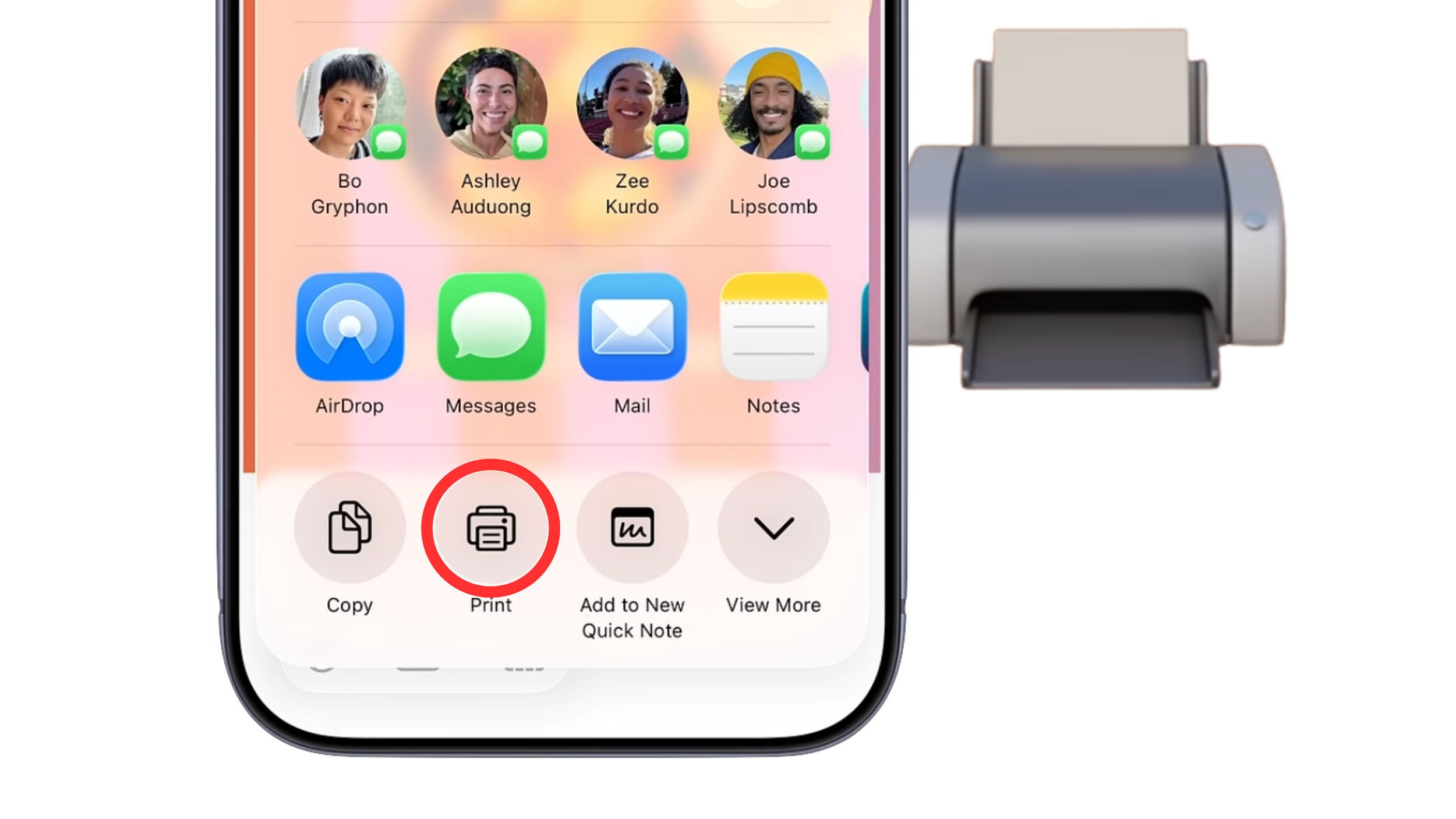
Step 3: Select print
After tapping the Share button, a menu will appear.
Scroll through the available options if necessary.
Look for Print.
Tap Print.
You may need to scroll down to find it.
Note: If you don’t see Print, check whether the app has its own menu or printing option.
Step 4: Choose your printer
A screen called Printer Options should appear.
Tap No Printer Selected or Printer.
Wait while your iPhone searches for available printers.
Select your printer from the list.
Make sure your printer is turned on and connected to the same Wi-Fi network as your iPhone.
If your printer doesn’t appear, see the troubleshooting tips below.
Step 5: Choose your print settings
Before printing, you may be able to adjust a few settings.
Depending on your printer and the item you’re printing, you might be able to choose:
Number of Copies: Select how many copies you want.
Page Range: Choose which pages to print.
Colour or Black and White: Select colour options if available.
Paper Size: Choose a paper size if this option is available.
You don’t need to change anything if the default settings are suitable.
Step 6: Tap print
You’re almost done!
Review your printer selection and settings.
Tap Print, usually in the upper-right corner of the screen.
Your iPhone will send the item to your printer.
Give your printer a few moments to begin printing.
Congratulations! You’ve successfully printed from your iPhone.
Troubleshooting: What if it doesn’t work?
Having trouble? Don’t worry. Here are a few things you can try.
My iPhone can’t find my printer
Try these steps:
Make sure your printer is turned on.
Check that your printer is connected to Wi-Fi.
Make sure your iPhone is connected to the same Wi-Fi network.
Move your iPhone closer to the printer.
Turn your printer off, wait a few seconds, and turn it back on.
Try printing again.
If your printer still doesn’t appear, check whether it supports Apple AirPrint.
I can’t find the print option
The steps can vary depending on the app you’re using.
Try tapping the Share button or looking for a menu with three dots (…).
If you’re trying to print a photo, open it in the Photos app first. If you’re printing an email, open the email and look for the Share or More options.
Some apps may not support printing directly.
Nothing is coming out of the printer
Check the following:
Is the printer turned on?
Does it have paper?
Is there enough ink or toner?
Is there a paper jam or an error message on the printer?
Is the printer connected to Wi-Fi?
Once you’ve addressed the problem, try printing again.
My printer is connected to a different Wi-Fi network
Your iPhone and printer generally need to be connected to the same Wi-Fi network for AirPrint to work.
If you recently changed your internet provider or router, your printer may need to be connected to your new Wi-Fi network.
Follow your printer manufacturer’s instructions to reconnect it.
A few helpful things to remember
You usually don’t need to install a separate app to print from an iPhone when using an AirPrint-compatible printer.
You don’t need to connect your iPhone to the printer with a cable.
The exact steps may vary slightly depending on your iPhone, printer, and the app you’re using.
If you print frequently, you may want to keep your printer turned on and connected to Wi-Fi.
Need a hand?
Technology should make life easier, not more frustrating.
If you need help setting up your printer or learning how to print from your iPhone or iPad, Silver Wizard is here to help!