
How to free up storage space on your iPhone
A simple guide to making room for photos, apps & more
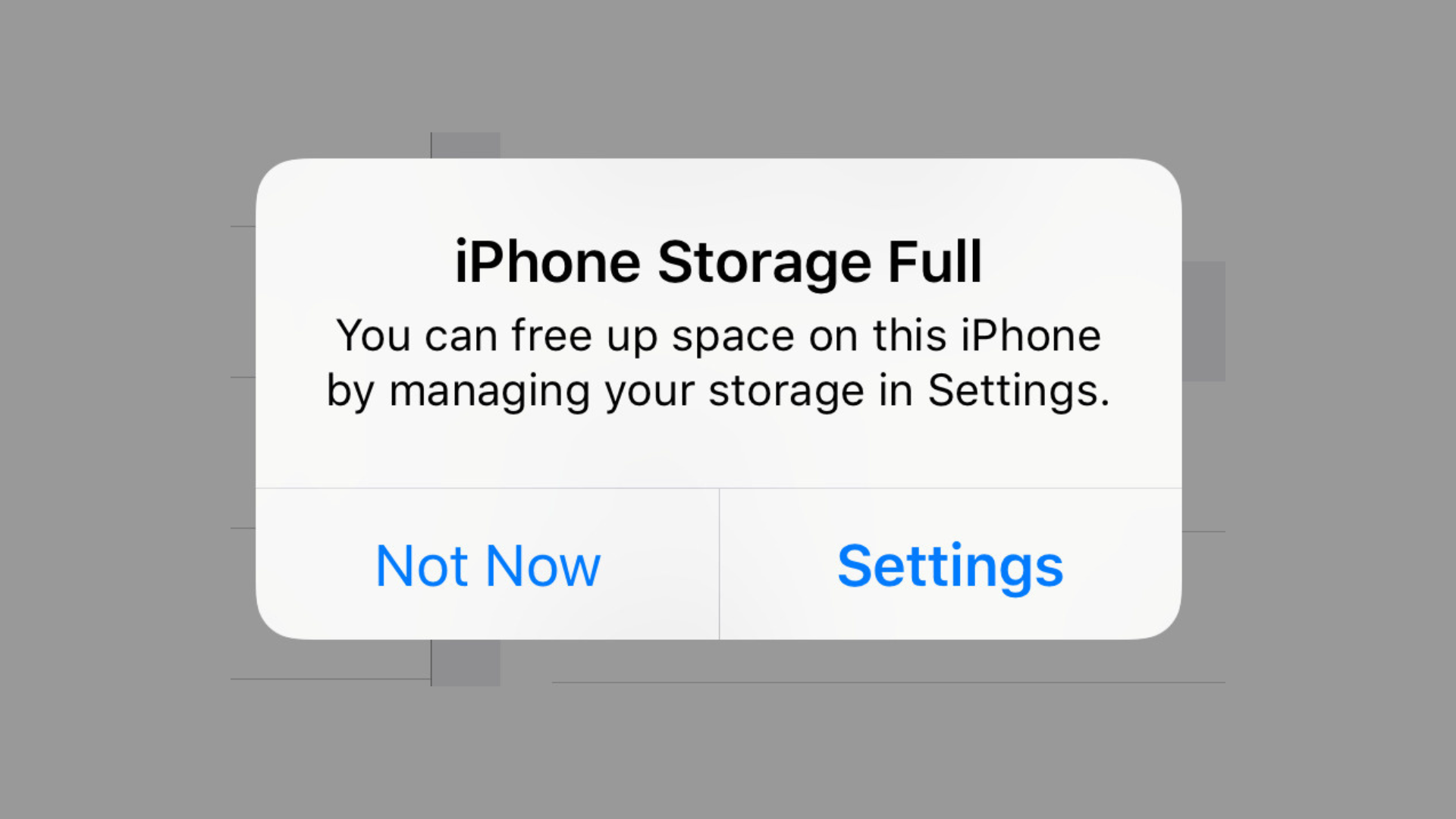
If your iPhone says “Storage Almost Full”, apps may stop working properly, photos may not save, and updates may fail to install.
The good news? You can free up space quickly with a few simple steps.
Here’s how to clean up your iPhone safely and easily.
Step 1: Check What’s Using Your Storage
First, see what’s taking up space.
Open Settings
Tap General
Tap iPhone Storage
Wait a few seconds for it to load
You’ll see a colored bar showing what uses the most storage, such as:
Photos
Apps
Messages
System files
Below that is a list of apps and how much space they use.
Step 2: Remove Unwanted Photos and Videos
Photos and videos usually take the most space.
Delete unwanted photos
Open the Photos app
Tap Select
Choose photos or videos to delete
Tap the trash can icon
Important: Empty Recently Deleted
Photos stay on your phone for 30 days unless removed.
Go to Albums
Scroll to Recently Deleted
Tap Select
Tap Delete All
This frees the space immediately.
Step 3: Back Up Photos Before Deleting
Before deleting photos, consider backing them up.
Options include:
iCloud Photos
Google Photos
External hard drive or computer
This keeps memories safe while freeing phone space.
Step 4: Delete Apps You Don’t Use
Many phones have apps that are rarely used.
To remove an app:
Tap and hold the app icon
Tap Remove App
Tap Delete App
You can always reinstall apps later if needed.
Step 5: Delete Large Message Attachments
Photos and videos in text messages also take space.
Go to Settings
Tap General
Tap iPhone Storage
Tap Messages
Review large photos and videos
Delete ones you don’t need
Step 6: Clear Safari Browser Data
Internet browsing stores data over time.
Open Settings
Scroll to Safari
Tap Clear History and Website Data
Confirm
This clears stored browsing files.
Step 7: Turn On Automatic App Offloading
Your phone can automatically remove unused apps while keeping your data.
Go to Settings
Tap App Store
Turn on Offload Unused Apps
Apps reinstall automatically when needed.
Step 8: Restart Your Phone
Restarting clears temporary files.
Turn phone off
Wait 30 seconds
Turn it back on
Small step, but helpful.
Helpful Storage Tips
✅ Back up photos regularly
✅ Delete duplicate photos and videos
✅ Remove unused apps
✅ Keep some free space available
✅ Review storage every few months
Signs You Need More Space
You may need to clean storage if:
Phone feels slow
Apps crash
Photos won’t save
Updates fail
Storage warning appears
Final Thoughts
Most storage problems come from photos, videos, and unused apps — and cleaning them up doesn’t take long once you know where to look.
If cleaning up feels overwhelming, Silver Wizard can help organize photos, set up automatic backups, and keep your devices running smoothly. Because your phone should make life easier, not more frustrating.